Processing Raw Files (and with FREE Software!)


Last week I ran a two-part series on whether you should take pictures in raw or JPEG format.  Part I gave a brief explanation on the these two file formats.  Part II was a discussion on which format you’ll most likely want to use, and when.  In that series I stated that unprocessed raw photographs are unsuitable for either printing or viewing on a computer display because, “. . . the resulting picture would appear to be flat, lifeless, and unflattering, with dull colors and very little contrast.”

Just to recap, that’s because the color saturation, white balance, sharpness, and contrast aren’t part of the raw image.  The camera’s settings for these are appended to the file for later processing on your computer, but none of that information exists at the pixel level recorded by raw.  So, how do these unprocessed photographs appear when compared next to the processed JPEG?  Let’s take a look.

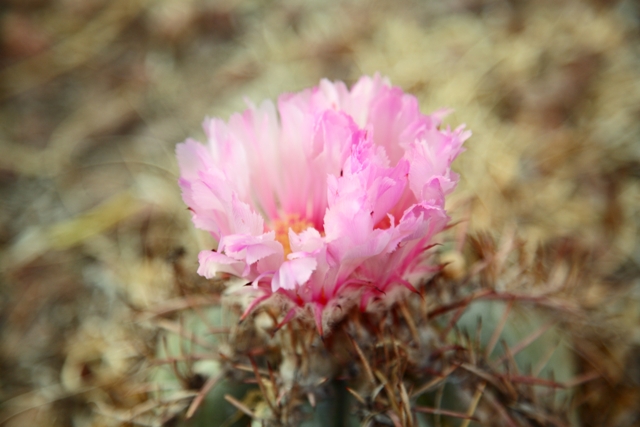
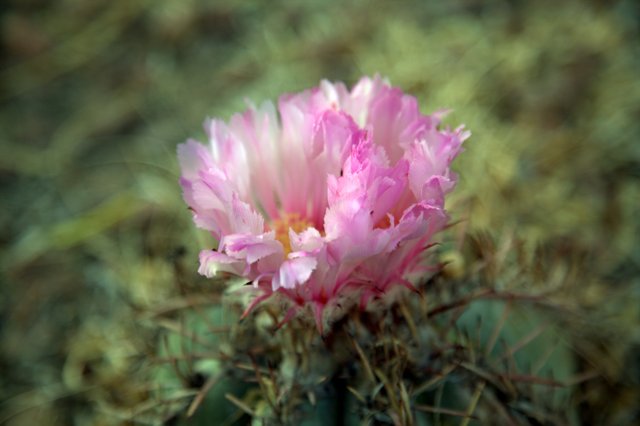
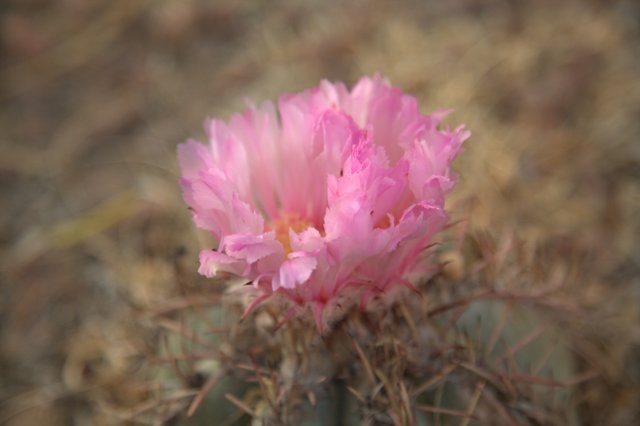
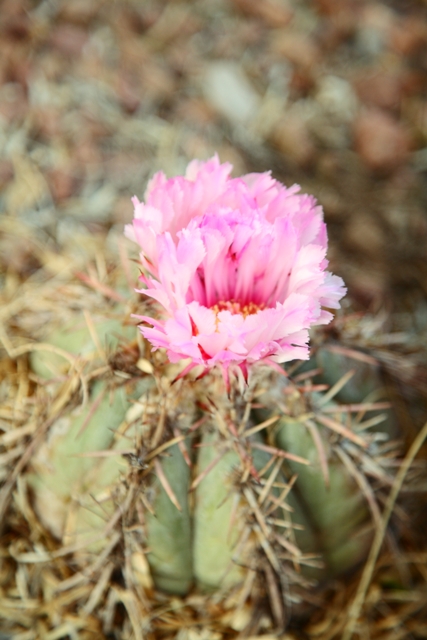
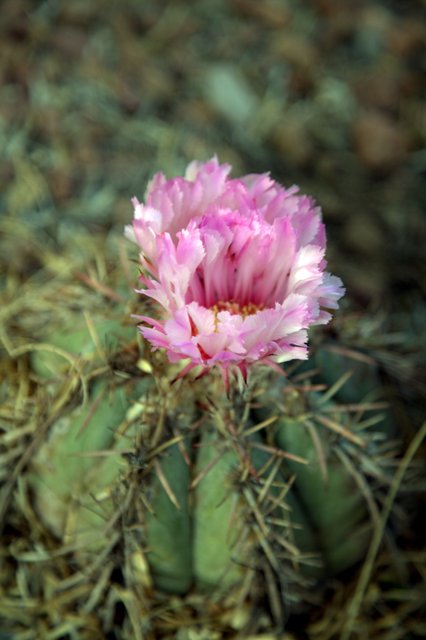
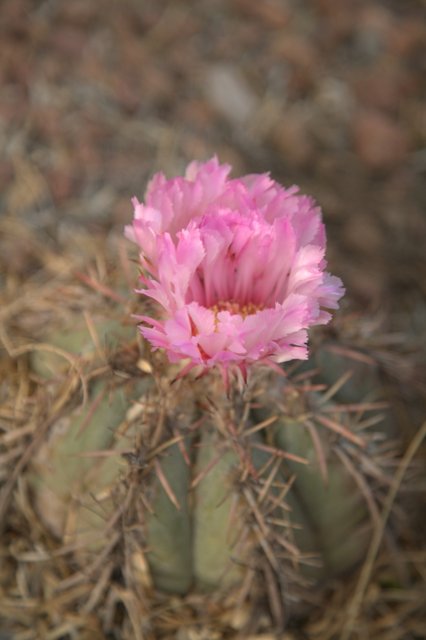
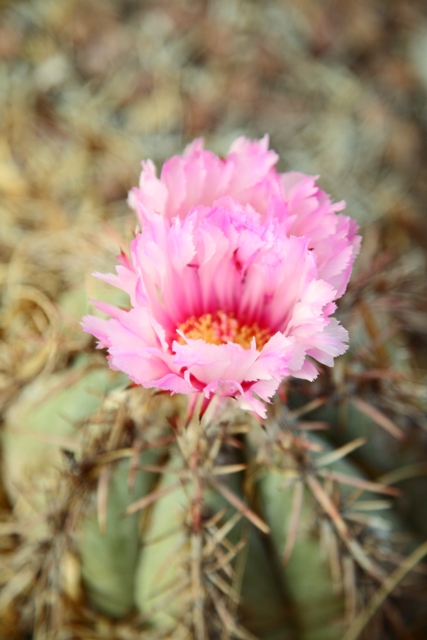
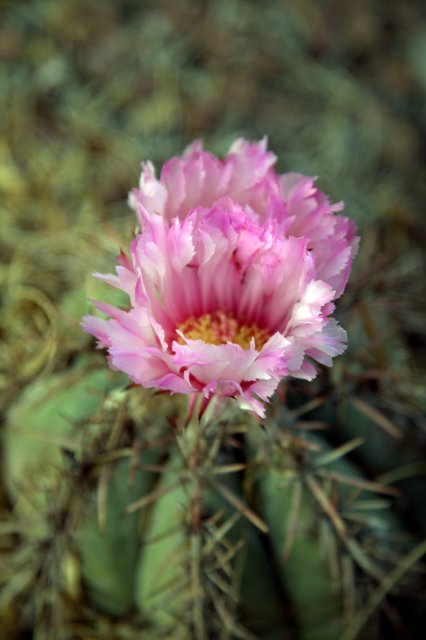
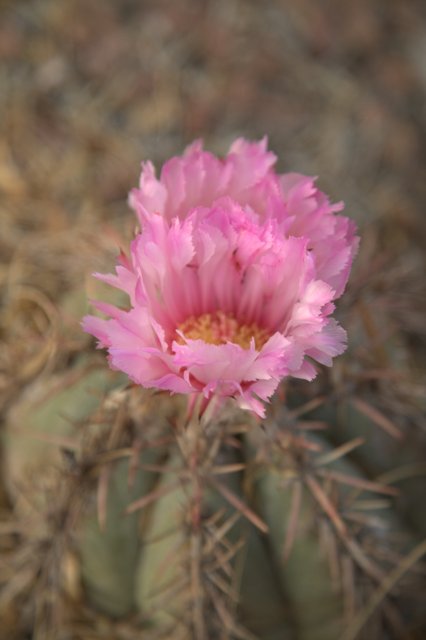
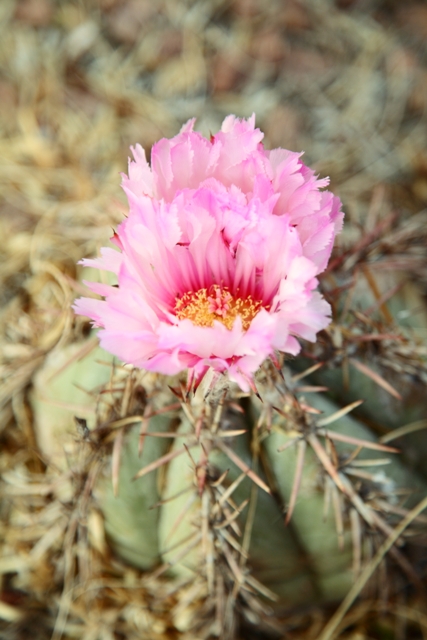
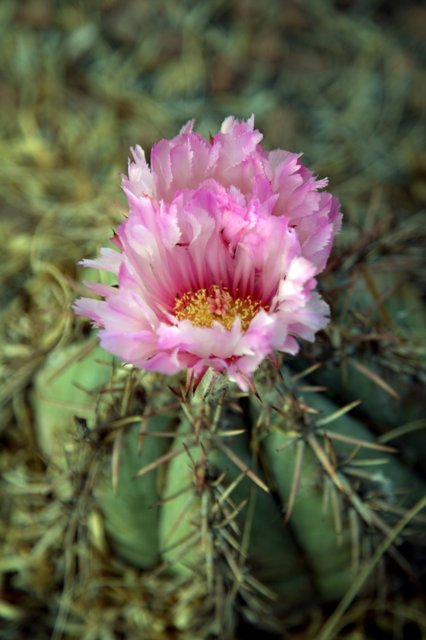
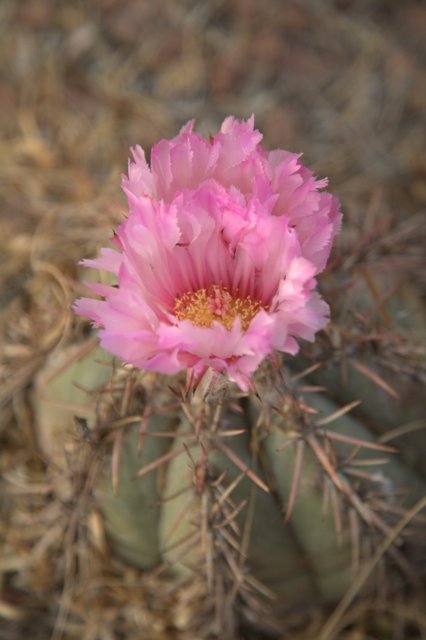
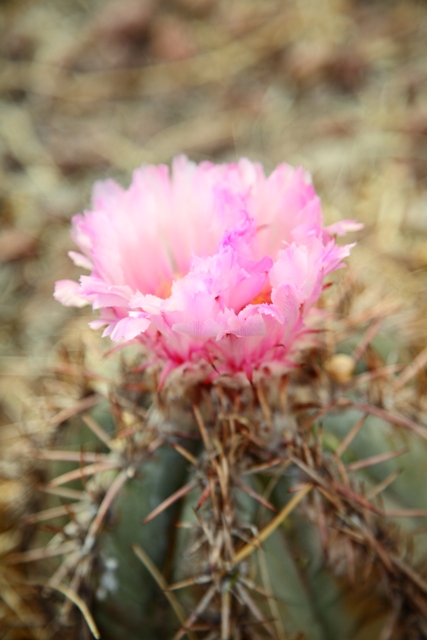
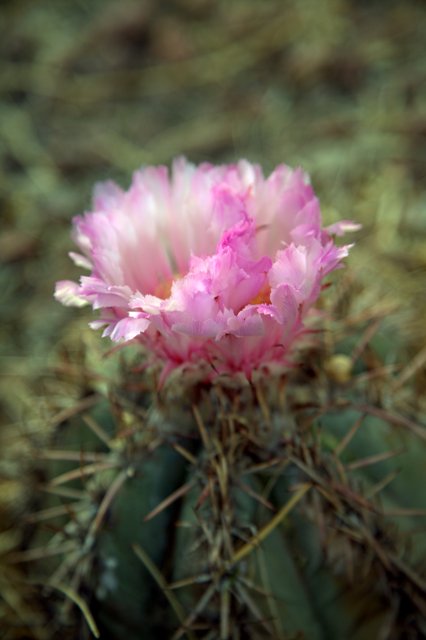
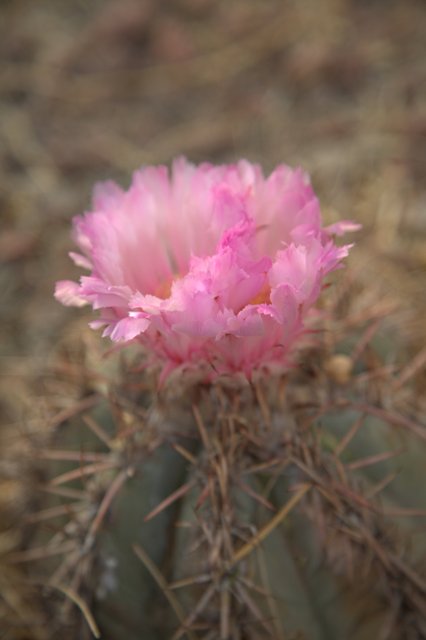
The following pictures are of a once-a-year bloom of a cactus in my front yard.  Being a rare event, I decided to photograph in raw to ensure the best chance of getting the white balance and other imaging parameters correct later, choosing to process the photographs myself rather than allowing my camera’s internal processor to do it for me.

Pictures on the left-side column are how an unprocessed raw image appears.  One look and I’m sure you’ll be saying, “Oh, yuck.  What a lousy photographer.”  But wait until you see the swans that can emerge.

The center column contains the same images processed using Google’s great little free program, Picasa 3 and then converted to JPEG.  The great things about Picasa are: it recognizes and processes the proprietary raw images from many camera manufacturers (click here for a complete list of recognized formats); it allows for some pretty basic processing, great for beginners; and if you don’t want to eyeball it, you can press the “I’m feeling lucky” button under the “Basic Fixes” tab.  “I’m feeling lucky” directs Picasa to take it’s best guess and automatically correct the Big 4—white balance, saturation, contrast, and sharpness.  Feeling a bit more industrious?  Click on the “Tuning” tab for manual adjustments.  For some real fun, try the “Effects” tab for everything from Black & White conversions to special effects.  The center column JPEGS are all the result of the “I’m feeling lucky” option, so you can see that it does a pretty decent job in a fairly short time.  My only quibble is that the pictures are a bit too contrasty and the saturation gives the photos an almost postcard quality, but there’s no denying the “wow” factor that makes these images pop.

The right-side column are JPEG files that I converted from the original raw images using the software that comes with Canon cameras that have raw image capability.  The software is DPP (Digital Photo Professional) 3.8.1.0, and this is what I go to for some really intensive photo editing (although I also use Adobe Photoshop Elements for some things that DPP simply does not do).  These particular JPEGs used the camera’s internal settings (my own custom picture style formula that gives a more accurate color rendition than does Canon’s Standard, Portrait, or Landscape picture styles).  Then, before conversion, I increased contrast to nearly match what came out of Picasa and did a minor, automated tonal curve adjustment.  These come closest to the actual colors of the green cactus and the pinkish flower atop it.

Remember:  Left column simulates raw images; Middle column is conversion to JPEG using Picasa”s “I’m feeling lucky” setting; Right column is conversion to JPEG using the software that came with the camera.

Share on Facebook

2 Comments

Filed under Photography

On the Lamb with a Bottle of Wine, or Four


This recipe was supposed to run last Wednesday. . . but like all good controllers I nodded off at the keyboard.  No, I didn’t.  Not really.  Just kidding, so please don’t call CNN.  What really happened is that I got sidetracked by that two-part series on JPEG vs raw.  My apologies on that.

The great things about this recipe are:

  • It’ll make you look like a gourmet chef even if you can’t boil water.
  • It’s so tasty your guests will keep asking for a return visit.  Indeed, I have at least three couple who keep hinting so much you’d think this was the only thing I know how to cook.
  • It goes with a multitude of side dishes, but I like to serve it with my sun-dried tomato polenta (sauteed until crisp on the outside) and marinated grilled asparagus.
  • It pairs well with myriad red wines (more on that later).
  • It’s so simple to make that even a husband can do it.

Ingredients:

  • 1 rack of lamb—frenched (I get mine already prepped from Costco)—per four people when served during a multicourse meal, otherwise you may need more per person
  • 2 tbs. good-quality extra-virgin olive oil
  • Sea salt
  • Freshly ground black pepper
  • Really, really good Dijon mustard (I use Amora almost exclusively, but you’ll probably have to order it online)
  • ½ to ¾ cup chopped walnuts or pecans (finely processed, but not too finely; leave some texture)

Step 1.  Brush the rack of lamb with olive oil and season with sea salt and pepper at least one hour before serving.  Let the seasoned lamb sit out to get up to room temperature.

Step 2. Preheat your oven to 450°F (230°C).  Heat a large, cast iron skillet to moderately hot, almost smoking.

Step 3. Place the rack of lamb into the heated skillet, searing both ends and all sides for two minutes each.  You’ll have to do the curved, fatty side in at least two or three stages to follow that curve.  The lamb will be nicely browned on all sides when you’ve accomplished this.  Set the lamb on a rack over a roasting pan and allow it to cool.

Step 4. Rub a thin coat of mustard over the lamb, covering all areas accept along the inside curves following the bone and the bones themselves.  That mustard is your tasty “glue.”  Dip the lamb into the walnut or pecan crumbs, coating evenly.  Keep this nut coating on the thin side, as you don’t want the nuts to overpower the delicate flavor of the lamb.  Place the lamb, fatty side up, back onto that rack over the roasting pan.  This recipe can be done up to this point before your guests arrive, allowing you to save the last, finishing step until just before you’re ready to serve the main course.

Step 5.  You’ve served the salad.  You’ve served the soup.  You’re serving the appetizer.  Place the roasting pan with the lamb into the oven.  Let the lamb roast for fifteen minutes.  Remove the lamb from the oven and place it onto a carving board, then loosely tent the lamb with heavy duty foil.  Let it rest for five to ten minutes.  Take your incredibly sharp chef’s knife and slice away the individual chops.  If you did this correctly, they should all be on the medium rare side.  If you prefer your lamb rare, reduce the oven time to twelve minutes.  Serve two chops per person along with your chosen sides.

Word of warning:  There’s not much in this world that’s worse than overcooked lamb.  Overcooking lamb is the primary reason many people turn their noses up at lamb today—that’s the way their mothers did it and they never got over it.  Overcooking causes lamb to give off a pungent, almost sickly sweet smell that ‘s a real turnoff, and the taste gets really gamey, and not in a good way.  But rare to medium rare?  Absolute heaven.    Oh . . . and mint jelly?  Don’t need it.  That’s what your mother used to try to hide the fact that she ruined the lamb by overcooking the heck out of it.

Wine pairings:  You’ll recall that I wanted to post this recipe because it pairs well with a lot of red wines.  Over the course of this blog’s history, I’ve done entries on Bordeaux-styles, Châteauneuf-du-Papes and GSMs, Zinfandels,  and Malbecs, and this rack of lamb recipe will go well with any of these choices.  Indeed, what I would like you to do is to hold a wine tasting dinner using this as your main course, but to do it right will require four couples and at least two racks of lamb because you’re going to go through four bottles of wine among the eight of you.

Here’s how to do your tasting:  Place four wine glasses at each place setting along with a glass of water to cleanse the palate between tastings.  Serve a different wine in each glass from the above list of four wines, keeping the order the same from left to right at each setting.  Do not let your guests know which glass holds which wine.  Over the lamb course, have your guests try out the different reds and let them see how each compliments the protein in the lamb in different and distinctive ways, and conversely how the lamb affects the taste of the wines.  After the main course, compare notes as to what scents and flavors your guests detected in the wines, and ask them to describe how that particular combination enhanced the flavor of the meat.  Finally, before desert, reveal which wine was in which glass and let your guests announce their personal favorites.

The proper way to sample wine:  This is going to sound like pure pretentious snobbery, but there’s a method to the madness.  Each wine glass should be filled to less than halfway.  The first thing you want to do is to compare the colors of the different wines.  While you’re doing this, also check that the wine clarity.  Tilt the glass and take a look at how the wine gradually changes color as the sample thins toward the edge of the glass (doing this with a white napkin in the background is best).  Checking for color is a clue to the varietal (grape) and how long it’s been aged.  Looking along the edge of the wine in a tilted glass is another aging clue, with a dark, almost brick-like reddish color extending all the way to the edge being a sign of longer aging.  Now, swirl the wine and hold the glass to the light.  Watch for the “legs” that form along the side of the glass.  This gives hints to how much “body” the wine has—the more pronounced the legs, the more concentrated “feel” the wine will impart in the mouth.  Swirl the wine again, but this time stick your nose well below the rim of the glass and inhale deeply.  What scents do you detect?  Don’t mention what you think people want to hear, or what you’ve heard others say.  Just close your eyes and concentrate, then blurt out the first things that come to your mind.  You’ll be surprised at what you might come up with, and you’ll be shocked at how many may agree with your assessment.  Swirl and take another deep sniff, this time concentrating on even fainter scents and impressions.

After this second sniff it’s time to take your first sip—but savor it.  Let it coat the entire mouth.  Chew it.  You heard right.  Get those teeth moving and actually chew the wine.  If your teeth feel as if you’re running pearls across them or otherwise impart a rough sensation, the wine has a lot of tannins—perfect to go with the proteins in red meats.  Swallow and inhale deeply through the mouth.  Do the tastes and sensations linger well after?  Then the wine has a long finish.  But one taste is not quite enough, which is why you should have at least two sips’ worth in your glass.  Repeat the tasting with a second sip to see if the flavors and sensations are consistent, or if they changed because your senses were “shocked” by the initial sampling.  At this point you should have a complete understanding of the wine being tasted.

Between wines:  Make sure thoroughly rinse your mouth with water before going to the next wine, or the different characters and flavors will interfere with your assessment.

Now, get back to that lamb and discover how each wine works in a different way to enhance the flavor, and how the lamb itself changes your impressions of the wine with which it is being paired at the moment.

I hope you find these wine blogs and recipes fun and informative, as I very much enjoy writing them.  If you have a particular favorite wine about which you would like to know more, please leave a comment and—if I’m familiar with that particular style or varietal—we’ll see about getting a blog out on it.

Share on Facebook

Comments Off on On the Lamb with a Bottle of Wine, or Four

Filed under Wine & Food

Taking Pictures in the Raw or Putting on JPEG Pants—Part II


So, JPEG or RAW?  We still haven’t answered that question.

Raw, as we noted in Part I, requires post processing to become useable.  “But, wait a minute,” you say.  “If it requires processing, how come when I review my raw shots on my camera’s LCD, they look positively great!”

Gotcha.  The raw image you took is not what you’re seeing.  Remember, raw only records the data registered by the individual pixels, and that means only the light striking the sensor is really recorded.  Then, appended to that raw file, is a bunch of information detailing the following user settings:  white balance, contrast, color saturation, sharpness, and a few other things that would have been processed into the actual image had you been shooting in JPEG.  When your camera “displays” that “raw” image on the camera’s LCD, it retrieves the appended user settings and replicates those settings in the displayed image, so what it’s really doing is giving you a processed image.

But since white balance, contrast, color saturation, and sharpness aren’t really pixel-related information, none of that stuff gets displayed off the camera without processing.  This can be a good thing.  Suppose you took raw photographs in bright sunlight when you belatedly realize that you forgot that your camera was previously set to Shade?  Well, that’s bad.  You’ve just ruined your prize shot of Honolulu taken from atop Diamondhead after you spent an hour or so climbing up there.

Good news:  No, you haven’t.  That setting—white balance—isn’t made at the pixel level.  You can change the white balance manually in post-processing using your computer and the raw processing software that came with your camera.

Load the raw file into the raw image conversion software, change the white balance after the fact, and when you convert that raw image to a JPEG there will be absolutely, positively zero difference between the image you just manually processed and the image that would have existed had you taken it in JPEG format with the white balance set correctly in the first place.  In other words, all you’re doing is using your computer to apply the processing that your camera would normally have done internally when shooting a JPEG.  If instead the shot had been made with the correct white balance, then all you would need to do is convert the existing raw image to JPEG using the raw file’s appended camera setting information.  This also works to make changes in any other non-exposure related user setting, such as contrast, color saturation, and sharpness.

So, taking pictures in raw is sort of like having a second chance to get the shot right . . . within limitations.  Raw manipulation fixes all that appended user information perfectly, but it’s less capable at fixing mistakes in exposure—information that was derived from the light striking the sensor at the pixel level.  Those exposure basics are of course sensitivity to light (ISO), shutter speed, and the amount of light being passed through the lens (aperture).  Raw is far less forgiving at fixing these problems because that’s the information recorded at the pixel level.  Still, you do have at least a bit more leeway fixing basic exposure problems in raw than you do with a JPEG image because raw records several more stops’ worth of dynamic range than does JPEG.  The reason for this goes back to the greater bit depth of the raw file over that 8-bit limit for JPEGs that we discussed in Part I.

By the way, you’re not really “converting” that raw file.  It still exists untouched on your hard drive after the “conversion.”  All you’ve really done is duplicated it into a processed JPEG.  So, if you screw up the processing, no harm has been done to the original image.

Before we move on back to JPEG, I promised to let you in on the secret to getting around JPEG’s 8-bit color depth to take full advantage of the much greater color and tonal range offered by your camera’s raw files.  The way to do this is to forego conversion to JPEG altogether.  Instead, use the raw conversion software that came with your camera to convert to something called TIFF (Tagged Image File Format) which records at either eight bits or an incredible sixteen bits depending on what you select.  That’s far more information than even the 12- or 14-bits recorded in your camera’s raw file.   Unfortunately, this eats up a huge amount of disk storage space, so you only want to do this if you’re a professional photographer or you’re making a poster-sized print of a specific shot.  Otherwise, stick with the 16.8 million colors you get with JPEG.  You won’t miss it when displaying your photographic gems on a computer display or when ordering normal sized prints, and you probably wouldn’t be able to see the difference unless you start blowing up pictures to well over 16×20 inches.

JPEG image files can also be fixed, but to a much smaller degree and with far less leeway.  That’s because you’re manipulating the already processed image rather than merely reinterpreting and converting pixel-level image data.  And don’t forget, that JPEG image was already compressed to begin with by the camera’s internal processing.  Any additional manipulation you perform degrades the image every time you save it.  Also, user settings such as white balance are locked in, so while you may think you’re changing the white balance, in actuality all you’re doing is digitally shifting the image’s existing colors.  That’s a dirty way to do it, and this “shifting” is far more limited than the ability to apply an entirely different white balance to the individual pixels in a raw image file.  It’s kind of like the difference between dying a white shirt red (raw), and just putting a red lens in front of your eyes to give the illusion that your white shirt is red (JPEG).

So, which is better, JPEG or raw?  I said before that we would definitively answer this question . . . sort of.  As with much in life the answer is an unequivocal, “It depends.”  Don’t you just hate that?

For the vast majority of people who want a point-and-shoot camera without all the complexity of learning actual photographic theory or how to manipulate all the settings on their camera, JPEG is definitely the way to go.  Let’s be brutally honest here.  If you can’t be bothered to take your camera off automatic, you sure as heck aren’t going to want to sit at a computer later and manually do the “processing” that your camera does automatically when you’re shooting in JPEG for . . . every . . . single . . . picture.  Besides, unless your computer monitor is properly calibrated for color correctness, chances are what you “process” on the screen is going to wind up being less accurate than what your camera’s internal processor would have given you to begin with.  In that case, you may very well wind up thinking you have a perfectly processed image that you converted from raw, only to find out that the resulting poster you had printed has a horrible greenish tint to it that didn’t show up on your uncalibrated monitor.

And even if you’re an experienced photo nut with over forty years of experience with this art form, you’ll frequently find that JPEG shooting will handle your photographic needs probably 95% of the time or better.  That’s certainly the case with me.  In fact, I will say right here and now that the vast majority of camera users can safely buy a camera with absolutely no raw capability and will probably never miss it.  Rather than trying to learn the intricacies of raw, these people would be much better off learning proper exposure techniques and when to take the camera off AWB and manually set in a specific white balance before taking the shot.

That doesn’t mean some of you won’t want to shoot in the raw, at least occasionally.  It’s great to have the capability if you’re willing to dedicate the time to learn the techniques necessary to take full advantage of it.  And there will be photographic situations where raw simply must be used.  Perhaps you’re in a confusing light situation—a halogen lighted room with sunlight streaming in through shaded windows, for instance.  What to do?  Sunlight setting?  Shade perhaps?  Go with the Light Bulb balance?  In such cases, raw can be invaluable in post-processing the correct white balance later.  Or, perhaps you’re on the trip of your dreams and you want that “second chance” raw affords you when taking that once-in-a-lifetime photograph.  You certainly wouldn’t want to have to climb back on top of Diamondhead just because you blew the white balance, would you?  That’s when you might wish your camera had raw image capability, but with a little care in properly setting up your camera you still wouldn’t need it.

So, in conclusion, my recommendation is to go with JPEG for nearly every shot you take.  As you get a bit more experienced, and if your camera has the capability, you might want to experiment with raw processing as it can be fun.  On a limited basis.  Sometimes.  But you won’t want to sit at a computer and individually process the 1,247 shots you took on your last vacation.  That is definitely not fun, and it may very well destroy your enjoyment of the hobby.  And if your camera doesn’t have raw capability?  Don’t worry about it.  Certainly don’t go spending good money just to acquire that capability unless you have a true need for it.  As I said, the vast majority of you will never need raw unless you’re a professional photographer.  And the amateur who does occasionally need raw will still be shooting JPEG most of the time, unless they have way too much time on their hands or are just lousy at camera settings.

Share on Facebook

2 Comments

Filed under Photography